
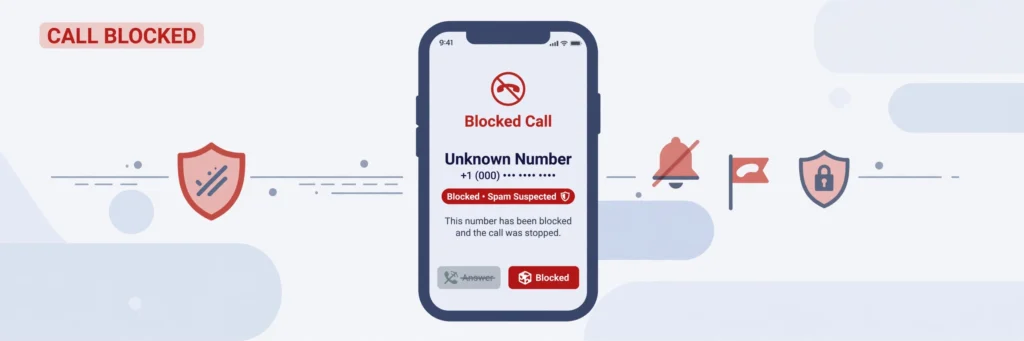
You can block spam calls on iPhone by opening the Phone app, tapping Recents, tapping the info icon next to the number, and choosing Block this Caller — or silence all unknown callers in Settings. On Android, open the Phone app, tap the number in Recents, and tap Block or Report spam. Below is the complete step-by-step guide for both, plus what to do when blocking alone is not enough.
Why Spam Calls Keep Coming
Spam calls keep coming because your phone number is a valuable commodity: scammers buy leaked number lists, run auto-diallers that ring thousands of numbers per hour, and spoof caller ID so every call looks local or familiar. Blocking one number rarely ends the problem, because the next call simply arrives from a different spoofed number.
Number spoofing is the core trick. The caller ID display on your phone is not verified the way you might assume — with cheap VoIP software, a scammer can make any number appear on your screen, including your own area code or even a number similar to yours. This is why blocking feels like whack-a-mole: you are blocking the displayed number, not the caller behind it.
Your number ends up on these lists in ordinary ways: data breaches, online forms, competitions, loyalty schemes, and sold marketing databases. Once a number is confirmed as active — because someone answered — it becomes more valuable and gets shared more widely. That is why a single moment of engagement can trigger a wave of new nuisance calls.
It helps to separate two categories. Telemarketing calls come from real companies selling something; they are annoying but usually legal, and opt-out registers handle them well. Scam calls come from criminals impersonating banks, delivery firms, or government departments; they ignore every register and every rule. Your defences need to cover both.
How to Block Spam Calls on iPhone
On iPhone, you can block any caller in seconds: open the Phone app, tap Recents, tap the blue info icon next to the number, scroll down, and tap Block this Caller. The number can no longer call, text, or FaceTime you. For broader protection, turn on Silence Unknown Callers so numbers not in your contacts go straight to voicemail.
Block a specific caller
- Open the Phone app and tap Recents.
- Tap the blue info (i) icon next to the number you want to block.
- Scroll to the bottom and tap Block this Caller, then confirm.
The blocked number cannot reach you by call, text, or FaceTime. To review or unblock numbers later, go to Settings > Phone > Blocked Contacts. This method is precise and safe — it only affects the exact number you chose.
Silence Unknown Callers
This is the single most effective iPhone setting against spam. Go to Settings > Phone > Silence Unknown Callers and switch it on. From then on, calls from numbers not in your contacts, recent outgoing calls, or Siri suggestions go straight to voicemail without ringing.
You will still see these calls in your Recents list, and any voicemail they leave is waiting for you — so a genuine caller, like a courier or a doctor’s surgery, can still get through by leaving a message. Scammers almost never leave voicemails, which makes this filter remarkably effective.
Use your network’s spam tools
Most major UK networks now offer their own spam filtering. These network-level tools can flag or block suspected spam calls before they even reach your phone. Check your provider’s app or website for options with names like spam shield, call protect, or nuisance call blocking — they are usually free and take a minute to activate.
How to Block Spam Calls on Android
On Android, open the Phone app, tap Recents, tap the number, and choose Block or Report spam — the exact wording varies slightly between Samsung, Pixel, and other manufacturers. Google’s Phone app also includes automatic spam protection that warns you about suspected spam callers before you answer; switch it on under Settings > Caller ID & spam.
Block a specific number
- Open the Phone app and tap Recents.
- Tap the number or contact you want to block.
- Tap Block (you may also see Report spam — ticking this helps Google’s spam database).
- Confirm. The number is blocked from calling and texting you.
To manage your blocked list, open the Phone app, tap the three-dot menu, and go to Settings > Blocked numbers. As on iPhone, this stops that exact number only.
Turn on caller ID and spam protection
In the Google Phone app, tap the three-dot menu, go to Settings > Caller ID & spam, and enable both See caller and spam ID and Filter spam calls. Your phone will then label incoming calls it believes are spam, and can automatically decline the worst offenders without ringing you at all.
Call Screen on Pixel phones
Pixel owners get an extra weapon: Call Screen. When a suspicious number rings, tap Screen call and Google Assistant answers for you, asks who is calling and why, and shows you a live transcript. Genuine callers explain themselves; robocalls hang up. You decide whether to pick up, all without speaking a word to a potential scammer.
Should You Use a Third-Party Call-Blocking App?
Third-party call-blocking apps can help when your phone’s built-in tools are not enough, because they maintain huge databases of reported spam numbers and can screen calls your phone would otherwise let through. But choose carefully: these apps need access to your call data to function, so only install well-known apps with clear, readable privacy policies.
The honest assessment is that most people do not need one. Built-in blocking, Silence Unknown Callers or spam filtering, plus registration with the Telephone Preference Service, stops the overwhelming majority of unwanted calls. A third-party app is worth considering only if you are still getting several spam calls a day after setting all of that up.
If you do install one, look for these signs of trustworthiness: a large user base, transparent ownership, a privacy policy that states your data is not sold, and permissions limited to what the app genuinely needs. Avoid any app that demands access to your contacts, messages, or location without a clear reason — a call blocker has no business reading your texts.
What to Do If You Already Answered a Spam Call
If you answered a spam call, hang up immediately, do not press any buttons or say “yes” to voice prompts, and never share personal or banking details. Then block the number and report it. A single answered call does not compromise your phone — but engaging with the caller confirms your number is active and invites more calls.
The “press 1 to be removed” trick deserves special attention. Robocalls often invite you to press a button to opt out of future calls. Do not believe it: pressing the button simply tells the system a human is listening, which makes your number more valuable. The correct response to any robocall is to hang up without interacting at all.
If you did share sensitive information, act quickly:
- Shared bank or card details? Call your bank immediately on its official number and explain what happened.
- Shared passwords? Change them now, starting with your email account.
- Gave remote access to your computer? Disconnect from the internet and seek reputable technical help.
- Report it to Action Fraud so the scam is logged nationally.
Do not feel embarrassed — these operations employ professional manipulators who do this all day. Acting fast matters far more than feeling foolish.
How to Report Spam Calls in the UK
Report spam calls in the UK by forwarding scam texts to 7726 (free), reporting fraud attempts to Action Fraud, the national fraud reporting centre, and registering with the Telephone Preference Service to cut legitimate telemarketing. Every report helps regulators map scam operations and warn others.
Forward scam texts to 7726. This free service, run by the mobile networks, lets you report suspicious texts in seconds — just forward the message to 7726. The networks analyse reported messages and use them to block scam senders across their systems.
Report fraud to Action Fraud. If a call attempted to defraud you — or did — report it to Action Fraud online or by phone. Action Fraud is the UK’s national reporting centre for fraud and cybercrime, and your report feeds the national fraud intelligence picture used by police.
Register with the Telephone Preference Service. The TPS is the official UK opt-out register for unsolicited sales and marketing calls, and registration is free at tpsonline.org.uk. Once listed, legitimate UK companies must not make marketing calls to you. It will not stop criminals, but it dramatically reduces genuine telemarketing.
You can also warn fellow consumers directly: when you look up a suspicious number on our site, you can report it on the result page so the next person who asks who called me from that number sees the warning before they pick up or call back.
How to Keep Your Number Off Spam Lists
Keep your number off spam lists by sharing it sparingly, unticking marketing opt-ins on every form you fill in, registering with the TPS, and never engaging with spam callers. You cannot make your number invisible, but you can make it a far less attractive target for the people who harvest numbers.
Start with the forms. Almost every online checkout, competition entry, and app signup asks for your number and pre-ticks a marketing consent box. Untick it every time. Better still, consider using a secondary number or a VoIP number for signups and keeping your real number for people you actually know.
Be cautious with public exposure. Posting your number on social media profiles, marketplace listings, or public directories puts it directly into harvesters’ hands. If you must list a number publicly, remove it as soon as the listing ends.
Finally, starve the system of feedback. Every answered call, every pressed button, every returned call to an unknown number teaches the scammers that your number is live. Silence is your best defence: let unknown numbers go to voicemail, check them with a reverse phone lookup first, and only engage with callers you can verify.
Frequently Asked Questions
Does blocking a number stop the spammer permanently?
No. Blocking stops that exact number, but scammers routinely spoof new numbers, so the same operation may call from a different number tomorrow. Blocking works best as one layer among several: combine it with Silence Unknown Callers or spam filtering, TPS registration, and a habit of never engaging.
Will Silence Unknown Callers block important calls?
It sends unknown numbers to voicemail rather than blocking them outright, so genuine callers can still leave a message. Numbers in your contacts, recent outgoing calls, and Siri suggestions still ring normally. If you are expecting a call from an unknown number — a delivery driver, for example — temporarily switch the feature off.
Is the Telephone Preference Service free?
Yes, TPS registration is completely free for consumers, and you should never pay anyone to register you. Sign up at tpsonline.org.uk; it can take up to 28 days to take full effect. Remember it only covers legitimate marketing calls — scammers ignore it.
What should I do about a missed call from an unknown number?
Do not call back straight away. First, find out who called me by running the number through a free reverse lookup — the number type and spam-risk rating usually tell you everything you need to know. If it looks like a premium-rate or high-risk number, block it and move on.
Can a spam caller hack my phone just by calling?
No. Simply receiving or answering a call cannot install malware or hack your phone. The danger comes from what happens next: clicking links in follow-up texts, sharing personal details, or granting remote access. Hang up, do not engage, and your device stays safe.